 SchriftOhr
How to use SchriftOhr
A tour of the app, section by section, with pictures of version 1.0. The same guide, in words, lives inside the app under the i button, and works offline.
The front door
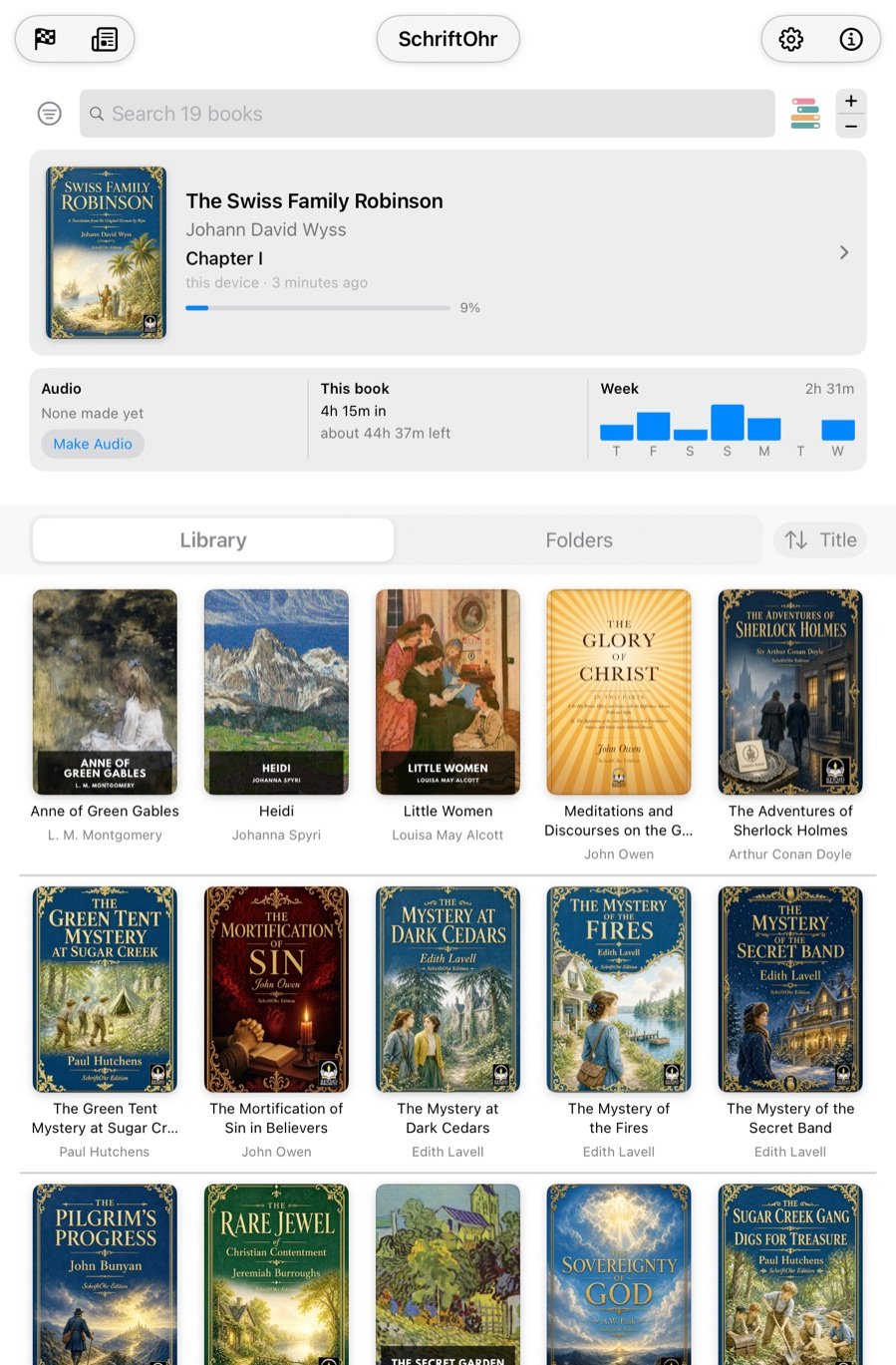
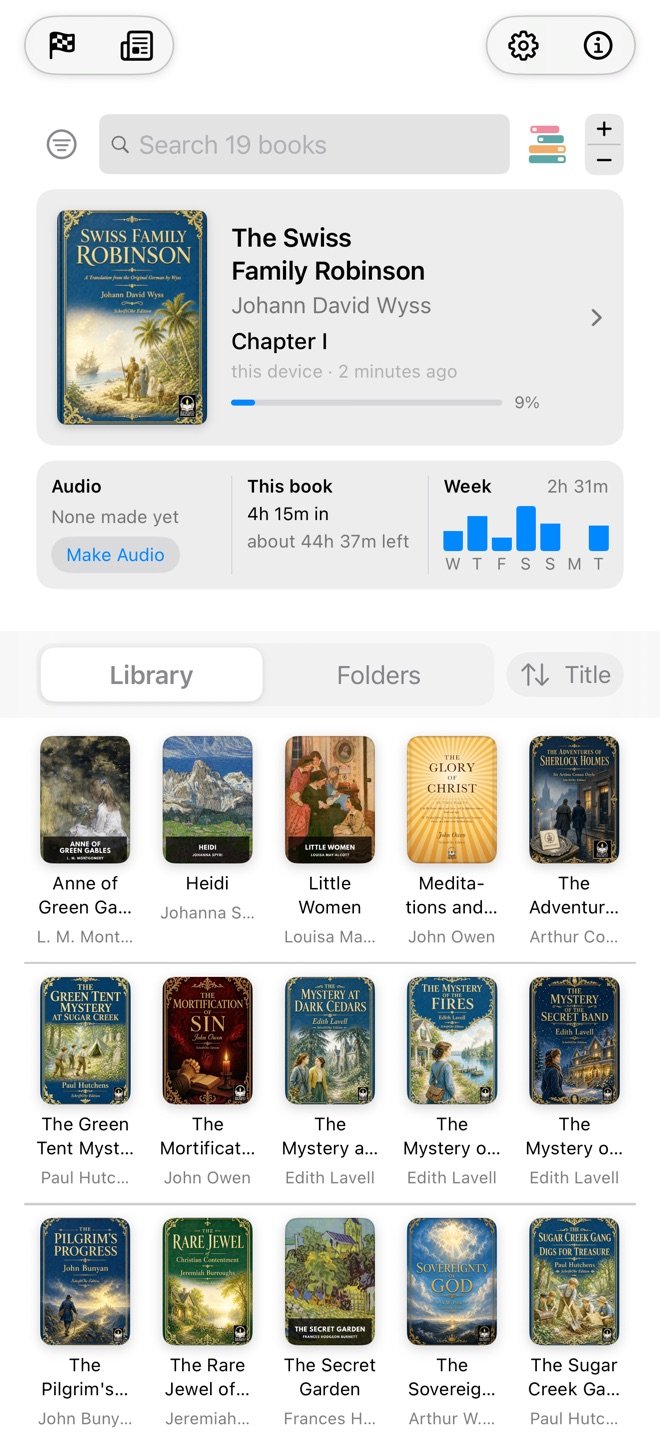
When you open SchriftOhr, you land right where your reading is: the book you're in, how far along you are, and how your week has gone. If you'd rather go straight back into your last book, turn on Settings, The Page & the Screen, Open the last book when the app starts.
The big card at the top is the book you're in right now. It shows the cover, the chapter, how far through you are, and which device you last read it on and when. Next to it you'll see how much of its audio is made, how long you've spent in it and about how long is left, and your week as a bar a day. Tap the week for your full stats.
Below that are the other books you've been in lately, from any of your devices. The shelf button next to the search swaps them for your whole library and back, and the minus and plus make the covers smaller or bigger. If you press and hold any cover, you'll get more options for that book.
The search box sits at the top. The button on its left picks where to look: everything, your Library, one of its folders, or a folder on this device. It searches when you tap the arrow, press Search, or stop typing for three seconds. The X clears it.
Under the search are two places. Library is your SchriftOhr library and any folders you make in it. Folders are folders you've attached on this device, and those books stay where they are. Sort puts the books in order by recently read, title, author, series, or recently added, and you can show them as a list or as covers.
A folder shows the last two books you read from it, so you know which shelf it is before you open it. A book without a cover gets one drawn in the colour of its type: blue for EPUB, gold for PDF, orange for Markdown.
Up top, the flag is your Reading List and the newspaper is What's New. On the right, the gear is Settings and the i is About. At the bottom of the page you'll find Find New Books, this guide, when things last synced, and the heart for supporting SchriftOhr.
Open a book
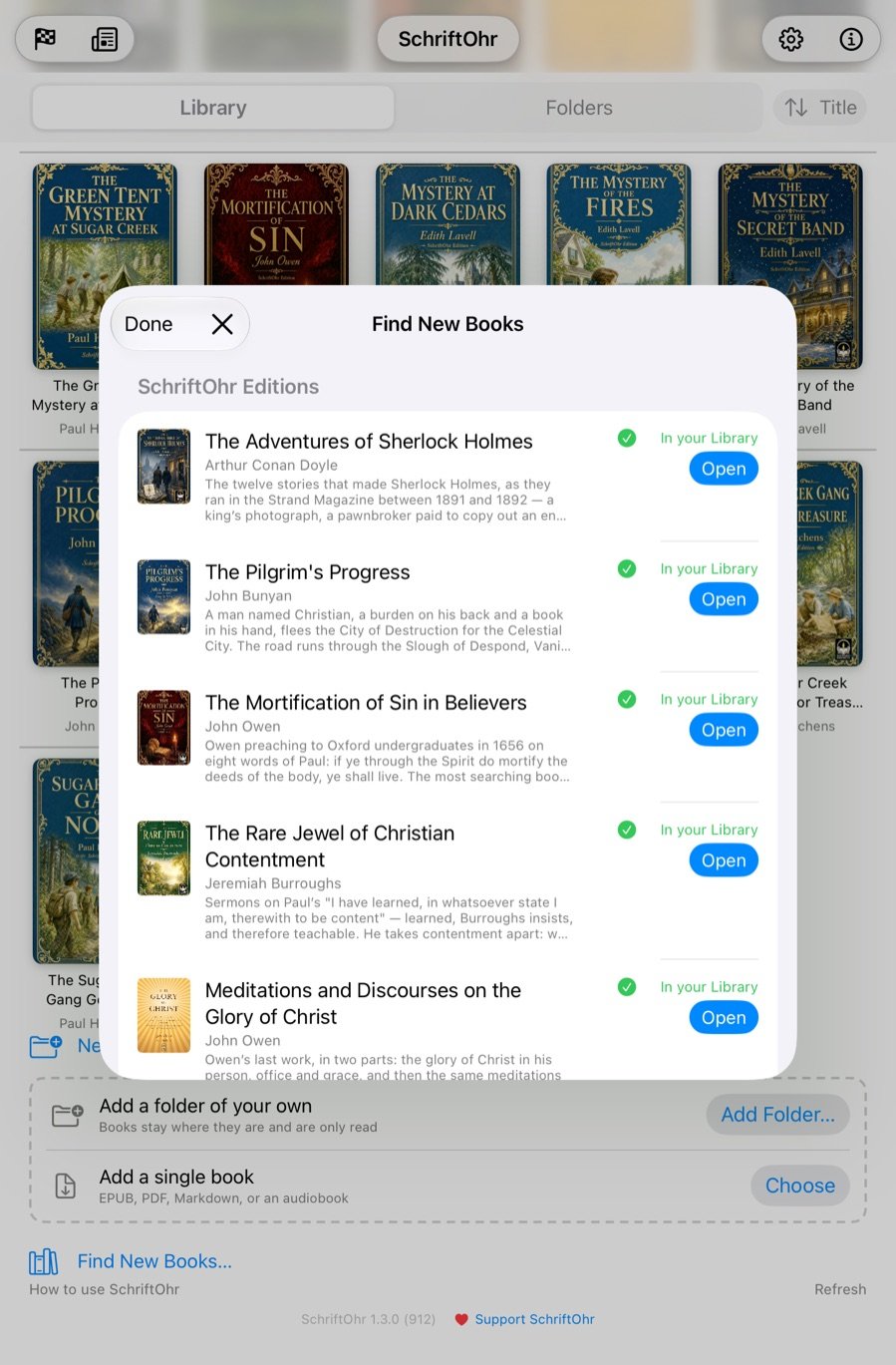
Don't have anything to read yet? Tap Find New Books at the bottom of the first page. It opens the SchriftOhr Editions, our own proofed public-domain books, and the free catalogs next to them. One tap and you're reading.
Find New Books also browses Project Gutenberg, and any OPDS catalog you add yourself, like a calibre server you run at home. Whatever you get lands right in your library.
Catalogs we don't review are age-checked. They open for an account the system says is 18 or over, or when a parent turns them on for this device. A parent finds that in Settings, Parental Controls, along with the age check and a switch to turn outside catalogs on or off for this device. SchriftOhr never sees a birthday, only whether the account is 18 or over.
To open a file of your own: Choose a file at the bottom of the Library on iPad and Mac, Add a single book on iPhone, or Open Book in the ⋯ menu while you're reading. SchriftOhr opens EPUB, PDF, Markdown, plain text, comics (CBZ), and audiobooks (m4b, m4a, mp3). On iPad and Mac you can just drop the file on the window.
Some Kindle books you've bought can come along too. Since January 2026 Amazon lets you download a book you own as an EPUB from Manage Your Content and Devices, but only when the author or publisher sells it without copy protection. If that download is offered, the EPUB opens here like any other. If it isn't, that book stays in Kindle.
If you've already got a folder full of books, go to Folders, Add a Folder of Your Own. SchriftOhr reads them right where they are, and it won't move, rename, or delete anything.
Your Library lives in iCloud, so it's on every device signed in to your account, and you can make folders in it to sort things your way. Folders you attach stay on the device that attached them. When you open one of their books, the app asks first: add a copy to your Library so it follows you, open it here only, or cancel.
A book still sitting in iCloud shows a small cloud, and opening it downloads it. And if you delete a book, don't worry, it isn't gone for good. It waits in Recently removed for 30 days, and one tap brings it back. Detaching a folder of your own never touches the books in it.
Find Duplicate Books, in Settings, Books & Library, looks for the same book twice in your SchriftOhr library and offers to clear out the extras. Your own folders are left alone.
And Where to find books lists free libraries and publishers who sell you an EPUB you actually own.
Get the voices
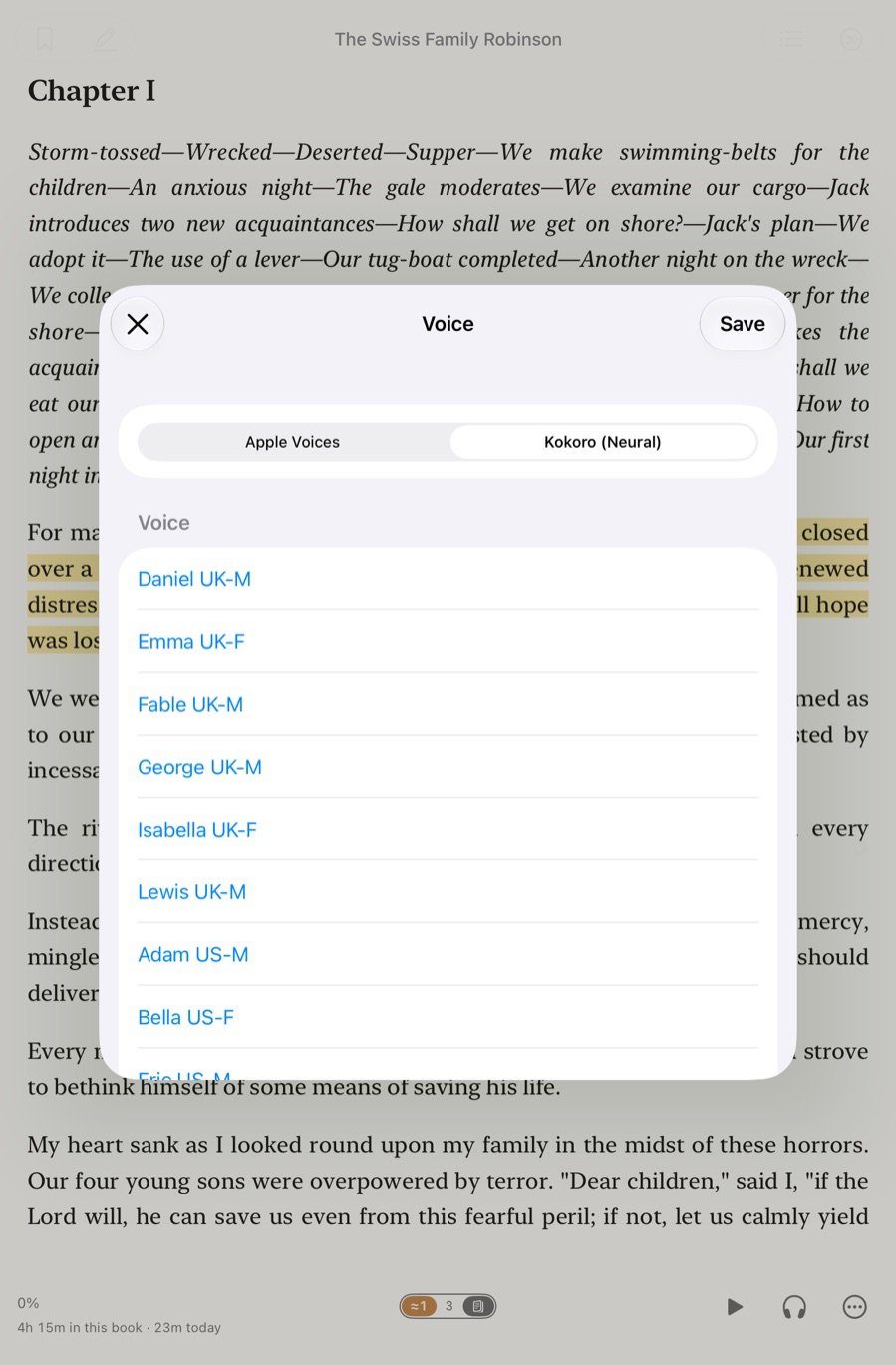
Voice, in the ⋯ menu or on Reading Controls, is where you choose the voice. At the top you pick the engine: SchriftOhr's own voices (Kokoro), or the voices built into your device. SchriftOhr's own voices are one download, one time, over Wi-Fi. That gets you nineteen voices that run completely on your device. Nothing is sent anywhere.
On most devices these voices make speech faster than you can listen to it, so the reading gets made as you go and you're never left waiting on it. That also means your device is resting most of the time, which keeps it cool and your battery lasting. If a device can't keep up, the Voice sheet will tell you.
The voices built into your device work differently. You download them one at a time, the good ones are big, and only some have a better version. SchriftOhr's own voices come together and sound like they belong together, which matters when a book has more than one person talking.
Under the engine is every voice by name. Tap one to try it, and a book that's playing carries on in that voice. Save keeps it. The X or a swipe down puts back what you had. Your narrator goes with you to every book and every device, and a book's cast stays with that book.
Each voice is named for who they are and where they're from, like Heart US-F or Lewis UK-M. Under SchriftOhr's own voices there's Deeper, which takes the voice up to 40% lower so one voice can read as two. A voice that's already deep moves less, so it stays clean.
Get more voices, at the bottom of the list, opens the Voice Library: the SchriftOhr voices download, the Apple voices worth adding on this device, and voices with an accent.
A voice won't speak? Settings, Diagnostics, Voice status shows what every voice can do on this device.
Listen
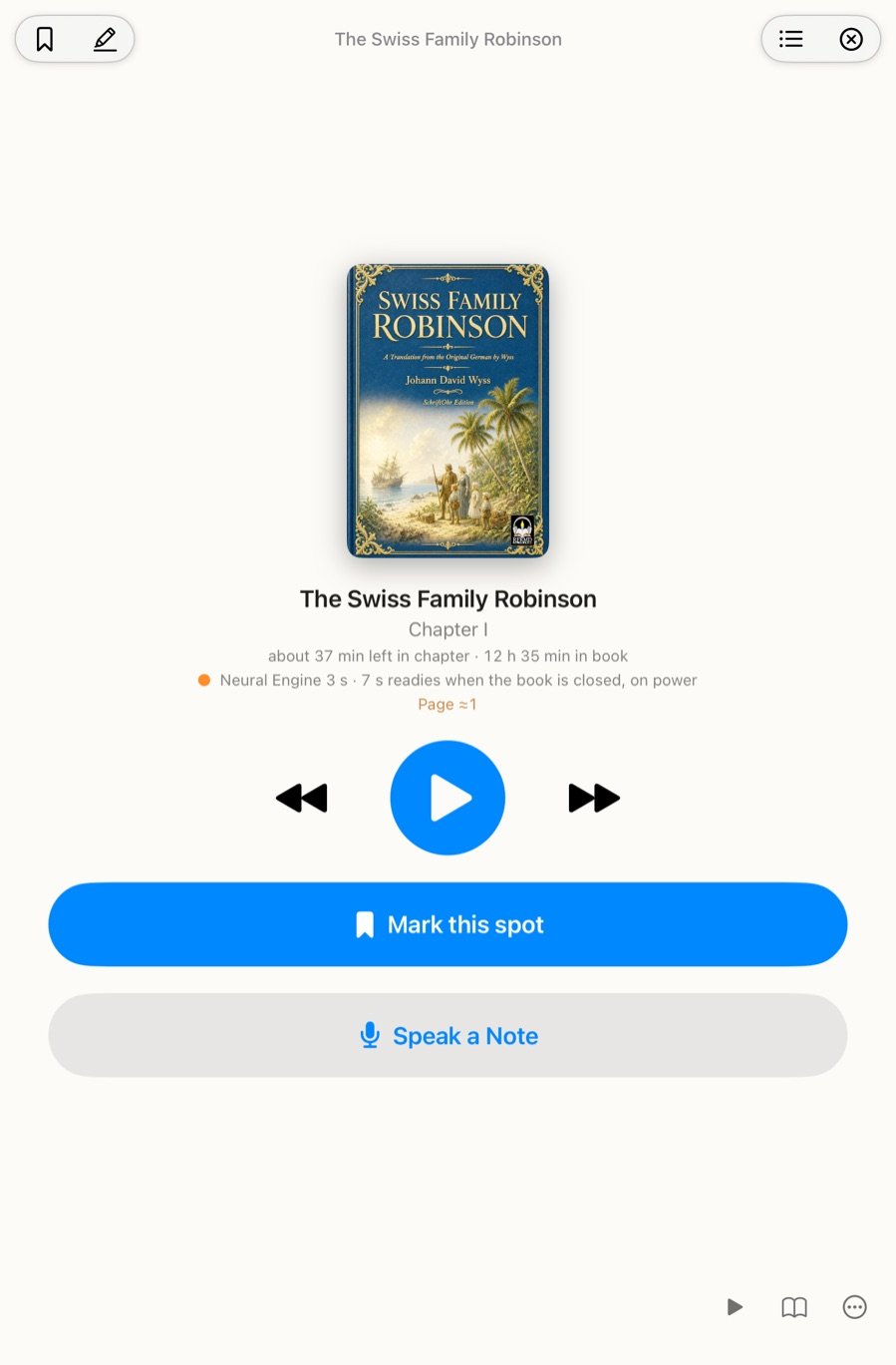
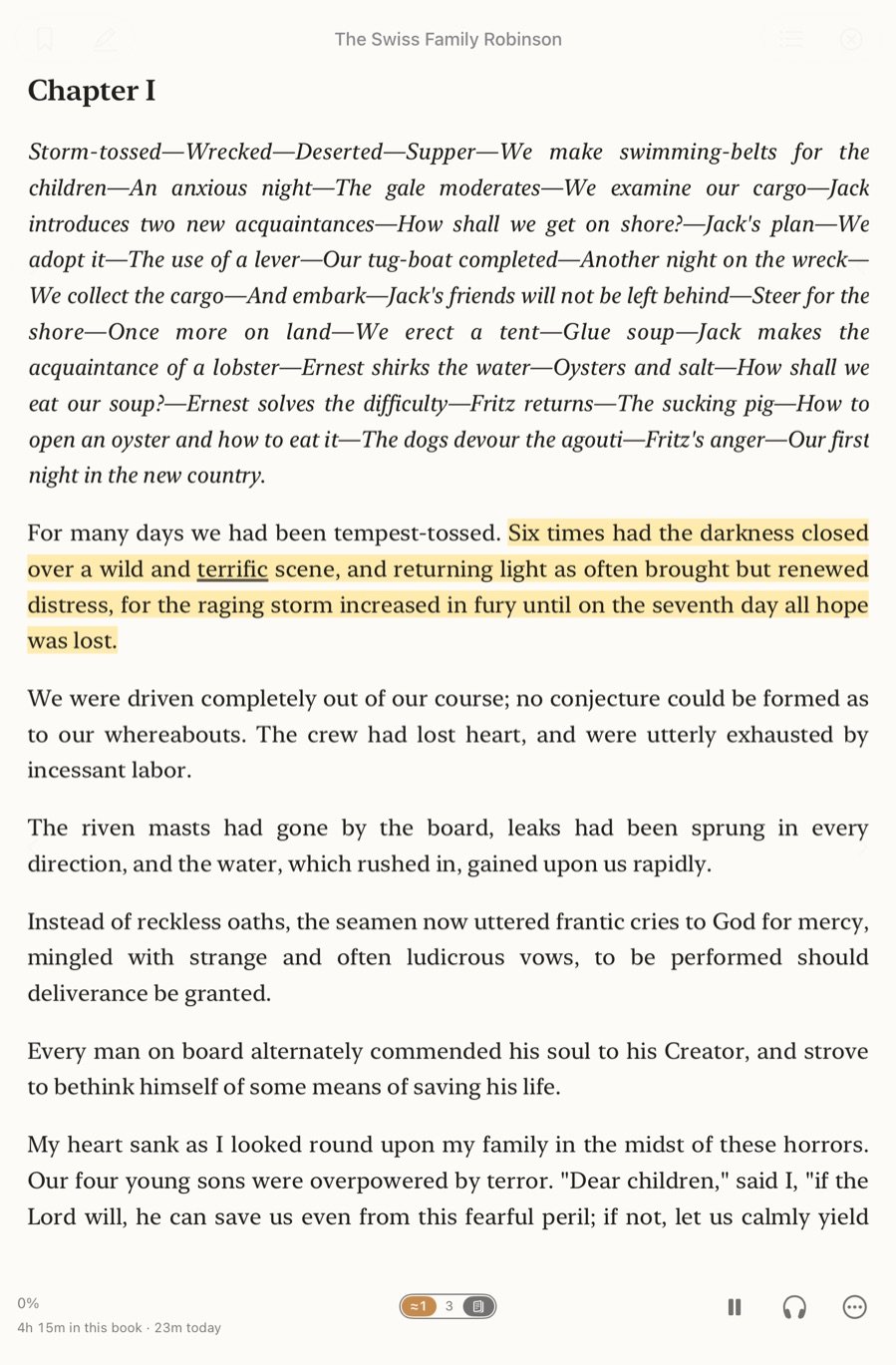
Press play and the page follows along with the voice. The highlight, the underline, and the page turns all move together, so you can read along or just listen.
The voice reads a paragraph in one breath and pauses where a person would. If you'd rather hear each sentence on its own, turn off Paragraph cadence in Settings, Voice & Listening.
The Listen page shows how much time is left in the chapter and in the book, at the speed you're listening.
On iPhone and iPad, if you leave the Listen page alone while it reads, it dims after a few minutes and then turns the screen off after ten. A tap brings your brightness back.
Page turner is the speaker button on Reading Controls. It stops the voice while the pages keep turning and the highlight keeps moving, so you can read hands-free on a stand. It's red while it's on. Silent reading keeps its own pace, so each way of reading remembers its own speed.
If a call comes in or you ask Siri something, the voice pauses and picks back up when you're done. Pulling out your headphones, or your AirPods disconnecting, pauses it too, so it doesn't suddenly start reading out loud in the room.
If the reading stops while the app is in the background, a quiet notice shows up a minute later. Tap it to come back to your place.
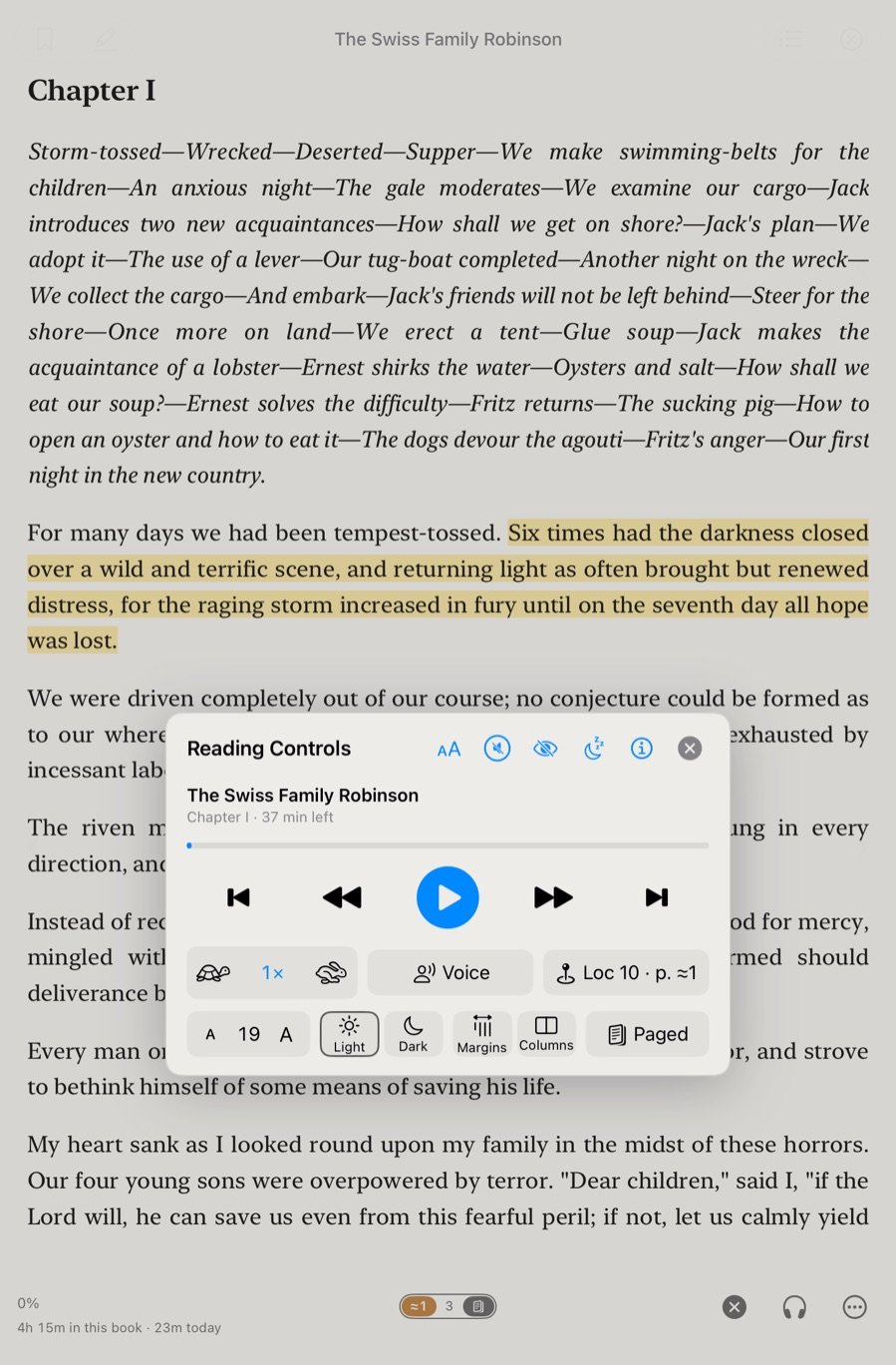
The sleep timer is the moon at the top of Reading Controls. Tap it to start the same time you used last. Press and hold to pick a time, or the end of the chapter. While it's running, a tap shows the time left and Turn Off. It fades the voice down before it stops.
Footnotes get skipped when the voice reads, and a notes chapter at the back can be skipped too. Both switches are in Reading Style.
Step back or ahead a sentence, or jump a chapter, from Reading Controls or your lock screen. Audiobooks skip 15 seconds. Screen off is the eye at the top of Reading Controls: it starts reading from the page you're on and turns the screen dark, good for driving at night. Tap to pause and carry on, and press and hold to come back. Every two minutes the dark screen lights up for a few seconds so you can see the way back.
Read
Reading Style, the Aa panel, sets the font, size, theme, margins, and whether you read in pages or one long scroll. The Font menu has a few good ones, every font on your device, and Import Font File if you want to bring your own. When a book has printed pages, a line under the size says which text size makes a screen page hold about one printed page, with a button to use it.
Turn pages by tapping the edges (the faint arrows show you where), swiping, or using the arrow keys on a keyboard. On iPad, and on iPhone held upright, the top quarter of each edge goes back, so one thumb can go both ways.
Reading outside in bright sun? Turn on Bright Sun in Reading Style, and the page goes as easy to see as it can get. It goes to a pure white page with heavier black text, and switching it off puts back exactly what you had. Bolder text is also its own switch on any theme.
The number at the bottom left cycles through percent, time left, screen pages (122 of 388), and off. Tap it to change.
The pill at the bottom middle shows the screen page and opens Reading Controls. That's where you'll find play and pause, speed, voice, and the sleep timer, plus a row for the page: text size, light or dark, margins, columns, and pages or scroll. The ⋯ button gets you there too. Its left end carries the printed page when the book has one: the book's own number in the page's ink, or ≈ before an estimate, in a colour you choose. A small arrow there means the printed pages begin further on. While the voice reads, the printed page follows the spoken word, so it can change part-way through a screen page; in silent reading it is the page at the top of the screen.
The top corners have the bookmark and your Notebook on the left, and Contents and Close on the right. The bookmark is filled when the page you are on is marked; tap it to mark the page or to take the mark off. Your Library is on the front page, one Close away.
Between chapters, the next chapter's title gets a page of its own. Keep turning to go into the chapter. A chapter that opens with its own picture doesn't need one, so it doesn't get one.
Press and hold any word for more. Look Up opens the dictionary. Listen from here starts the voice at that paragraph. Fix Pronunciation teaches the voice that word. On its own, the voice tells a noun from a verb for words like record, present and live, and reads “read” as past where the sentence says so. Highlight or Note keeps the passage.
Every place in a book has a number, and it's the same on every device. Reading Controls shows yours as Loc. Tap it to go to any location.
Find in Book searches the whole book. Tap Search, or just stop typing for three seconds and it'll go.
The Aa at the top of Reading Controls opens Reading Style. Go to the Voice, in the ⋯ menu under Go To, brings the page back to where the voice is reading. Listen From Here, under Playback, starts the voice on the page you're looking at.
In pages, Columns can show two pages side by side with a fold down the middle. It's best on a wide screen. You'll find it on Reading Controls and in Reading Style.
Reading along while the voice turns the pages? After an hour without a touch, Eye break asks you to rest your eyes for a moment and look at something far away. If you don't answer in two minutes, the screen goes off and the voice keeps reading. Settings, The Page & the Screen, Eye break sets the time or turns it off.
Your reading list
When you finish a book, press and hold it on the front page. Mark as Read files it in your reading list and asks how it was with five stars, which you can skip. Mark as Left means you don't plan to finish it. No rating, no judgment, and your place is kept in case you come back.
When you finish the last chapter after a real sitting, the app offers to file it for you, once per book.
The Reading List is the flag at the top left of the front page, or open it from Reading Stats. It has everything: what you're reading, what you've read with its stars, and what you've left. You can search it, sort it, change a rating, or put a book back on the shelf.
If you open a book you'd left, it asks you the fair question: pick up where you left off, or start over? Either way, you're back to reading it.
Reading Stats keeps your journal: every finished book as its cover, with the stars you gave it and the hours it took.
You can take a book off Continue Reading on just this device or on all of them. Reading it again always brings it back. Nothing is lost for good.
Comics & PDFs
Comics and graphic novels open as pages, full screen, and turn with the same taps and swipes. That works for EPUB, PDF, or CBZ, even scans with no text. The page number is the real one, like 121 of 448. There's no voice on picture pages because there's nothing to read out.
A PDF with text reads reflowed and cleaned up for listening, so the voice doesn't read out running heads and page numbers. Want the real page? True Pages in Reading Style shows the PDF's own layout, pictures and all, and remembers its own spot.
Battery
We built SchriftOhr to go easy on your battery. The voice works in short bursts and rests in between, and while it's playing nothing in the app wakes up on a timer.
The screen costs more than the voice. Screen off, the eye at the top of Reading Controls, is the biggest battery saver in the app: the voice keeps reading while the screen rests. On an iPhone, whose screen is OLED, a black page costs almost nothing. On an iPad the backlight still glows at its lowest, so the surest saver there is to lock the device: the voice keeps reading with the screen dark. On an iPad mini, an hour of listening cost twice as much with the page lit as with Screen off.
OLED Save, in Settings beside Keep screen awake, lets Screen off show the sentence being read with the rest of its paragraph dim. On an OLED screen only the lit letters draw power, so you can follow along on a low battery. The Black theme, under Light / Dark, is the same idea for ordinary reading on an iPhone.
RFRMD Neural, in Settings, Voice & Listening, Voice Status, makes the voice on the Neural Engine, which runs cool and sips power. On an iPhone 16 Pro Max an hour of listening with the phone locked cost about six percent of the battery, against ten to thirteen on the processor models, and the phone stayed cool all day. The dot beside the voice model, in the Voice panel, in Listen mode and in Voice Status, says where the route stands: the processor route reads until the Neural Engine's first models are ready, which happens on the library screen or, once the voice is a minute ahead of you, while you listen; the larger models follow on the library screen while the device charges. A small orange pill at the foot of the page counts down a compile as it runs.
Low Power Mode is respected. The app stops the word highlight and stops keeping the screen on. The voice stays ahead so the reading never waits. If the phone gets warm, it slows down until it cools off. After a long listen iOS may say it is adjusting performance to extend battery life; the voice has speed to spare, so you will not hear it.
Keep screen awake, in Settings, The Page & the Screen, keeps the page lit while you read. It's on unless you turn it off. That's your call; just know a lit screen does use battery.
Settings, Diagnostics, Device health shows the numbers: battery, brightness, heat, and what today's listening cost. On iPhone and iPad, turn on Collect usage & battery reports to add Apple's own daily report for the app.
Your notebook
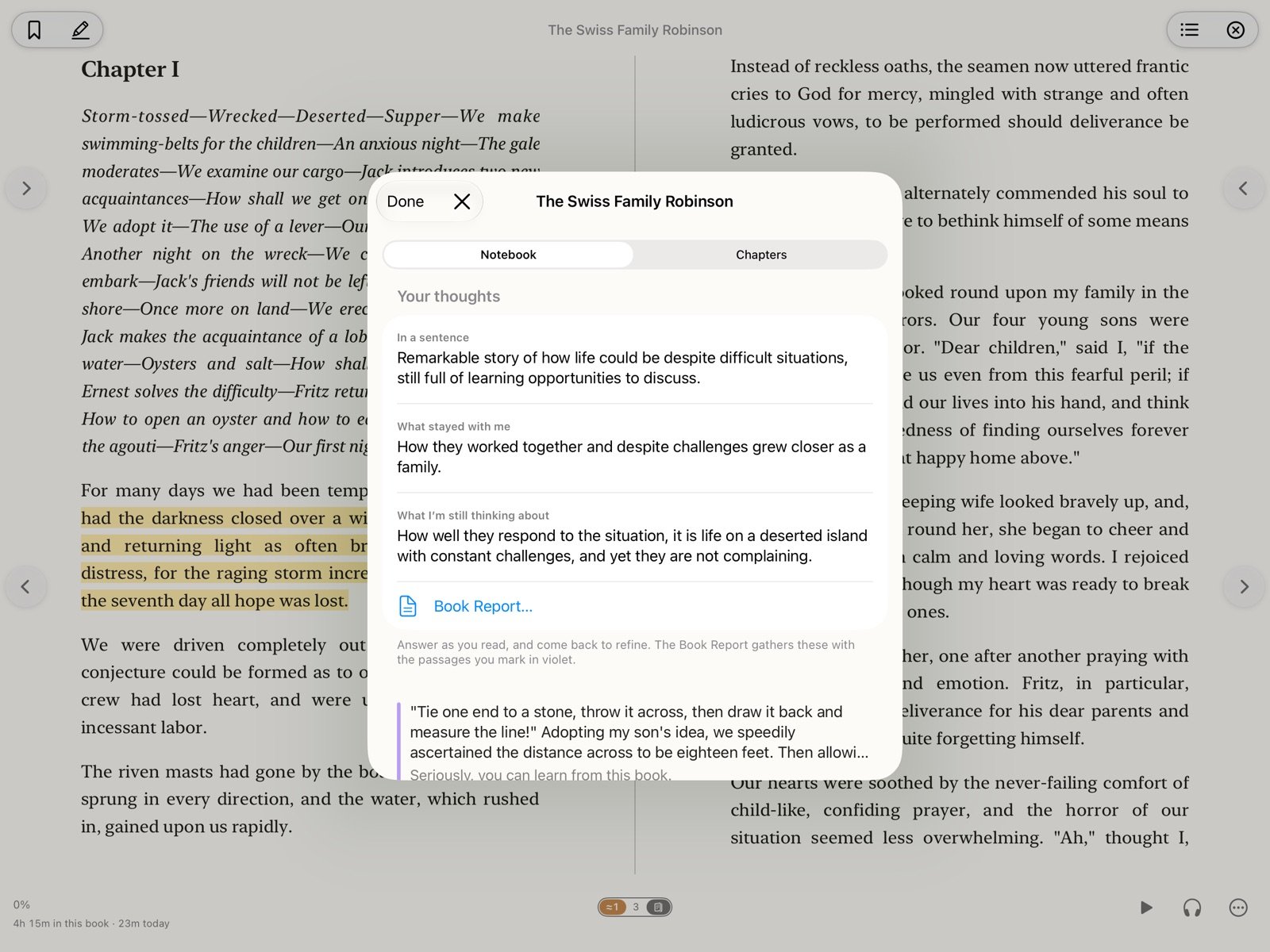
Everything you highlight or bookmark goes in the Notebook, in reading order, with your notes. It's at the top left of the page, and in Contents.
Press and hold an entry to edit its note, remove just the note, or delete it. You can export the whole notebook as Markdown any time.
Three questions sit at the top of the Notebook: the book in a sentence, what stayed with you, and what you're still thinking about. Answer them as you go and come back to them later. Your answers follow you to every device.
Violet is your book report pen. Book Report, in the ⋯ menu under Book or in the Notebook, puts your answers, the facts of your read, and your violet passages with their notes into one Markdown page. Choose Every kept passage to bring in the other colours and your bookmarks too. Share it to MarkSchrift, our Markdown editor, or anywhere that takes text.
Support SchriftOhr
If SchriftOhr has earned a place in your reading, a tip really does help us keep going. You'll find the heart at the top of the ⋯ menu, in About, and at the bottom of the front page. A tip is a thank-you. It doesn't unlock anything.
A cast of voices
Cast, in the ⋯ menu under Sound & Page, or Cast this book at the bottom of the voice list, gives each character their own voice. The narrator reads everything else, and you can choose the narrator there too.
Any character can be Deeper, and so can the narrator. Casting by gender gives you Men deeper and Women deeper for everyone at once. When the speaker changes mid-sentence, there's a short beat, the way a person reading would take it.
The app works out who said what by reading the book, and you can settle any line it wasn't sure about. Or cast by gender and let every he-said and she-said sort itself out.
Kept audio saves every sentence the voice makes, so nothing gets made twice. Starting is instant, going back is free, and the voice can rest while kept chapters play. Settings, Voice & Listening picks how it works, how far ahead it gets ready (Audio ahead, by listening time, good for a commute), and how much it keeps. Stored Audio, beside those settings, shows each book's audio on this device and in iCloud. Pin a book in the ⋯ menu and its audio stays until you release it; when the device runs low on space, books that are not pinned make room first, and you are asked before a pinned one goes. To start a book's audio over, Forget This Book's Audio clears it here, in iCloud and on your other devices, and it is made fresh when you listen again.
On devices with Apple Intelligence, an AI second reader can check the lines the app couldn't call, one chapter ahead of you, all on the device. Settings, Voice & Listening sets it to off, while charging, or always.
Say it right
Is the voice getting a name wrong? Pronunciation, in the ⋯ menu under Sound & Page, lets you teach it the word once. Press Hear it until it sounds right, and every book uses it from then on.
Spell how it sounds, not how it's written: oh as in row, ee as in see, eye as in my. The question mark on the Pronunciation page lists every sound that works well and shows how to move the stress.
Your pronunciations follow you to your other devices.
You can share them too. Share your fixes can export a file for a friend, import theirs, or send your list to us. The best fixes go into the app for everyone.
Make it yours
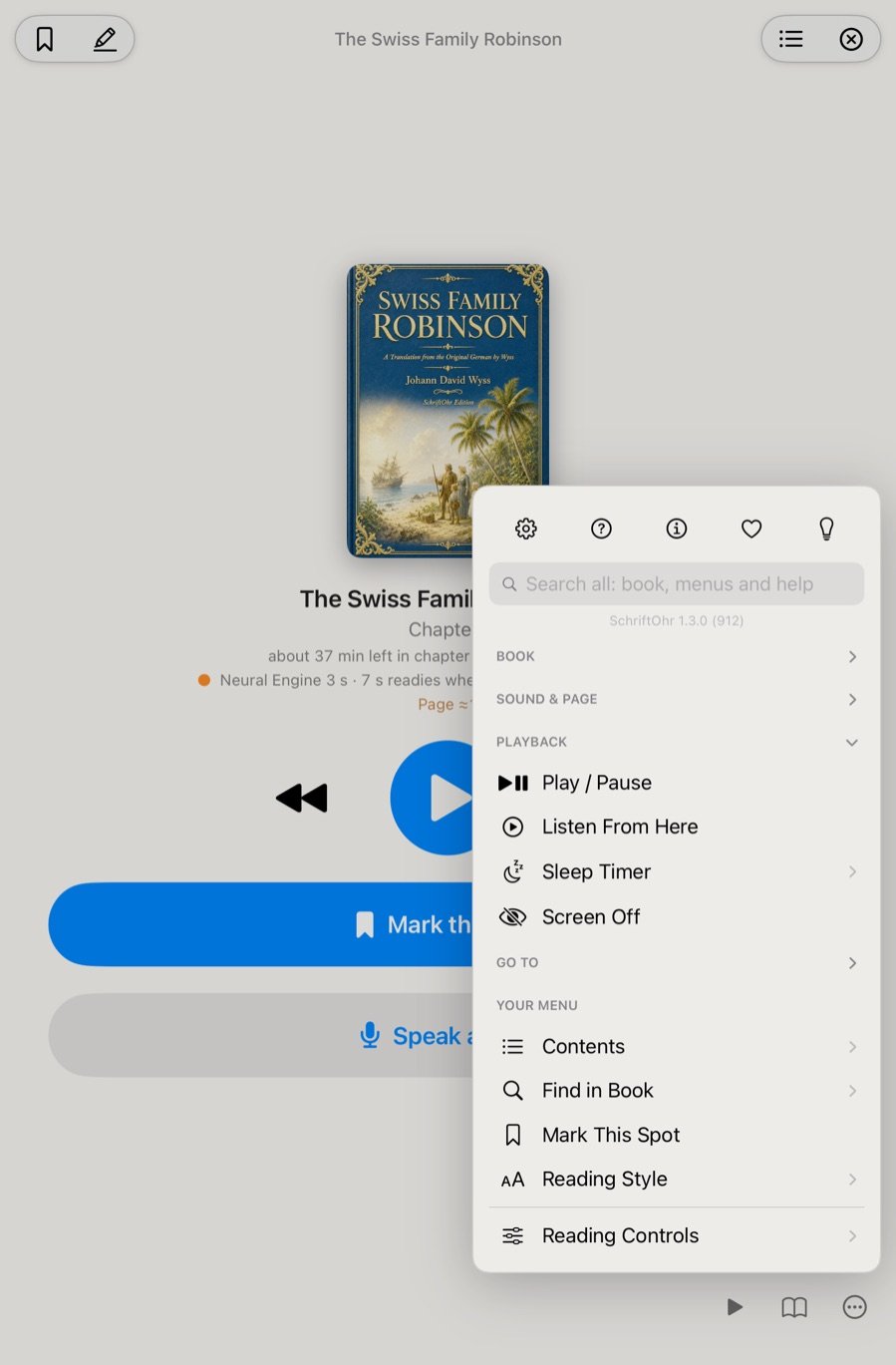
The ⋯ menu has four sections: Book, Sound & Page, Playback, and Go To. Settings, How to Use, About, Support, and Send an Idea sit as icons across the top. One section opens at a time so the menu never runs off the screen.
Your Menu, at the bottom, holds up to six shortcuts of your own. Pick them and their order in Settings, Customize the ⋯ Menu. Larger Text, Smaller Text, Light / Dark, Scroll / Paged, Margins, and Line Spacing can be shortcuts too, and they change the page without closing the menu.
The ⋯ menu and Reading Controls put themselves away after nine quiet seconds and take you back to the page. Touching either one starts the count over. Settings, The Page & the Screen, Close menus when idle lets you pick six seconds, nine, your own time, or never. With VoiceOver on, they always stay open.
Your menu follows you to every device. A device can keep its own menu instead with the switch in the organizer, and switching back never loses the order you made.
Settings has everything you can change, or a clearly named door to it.
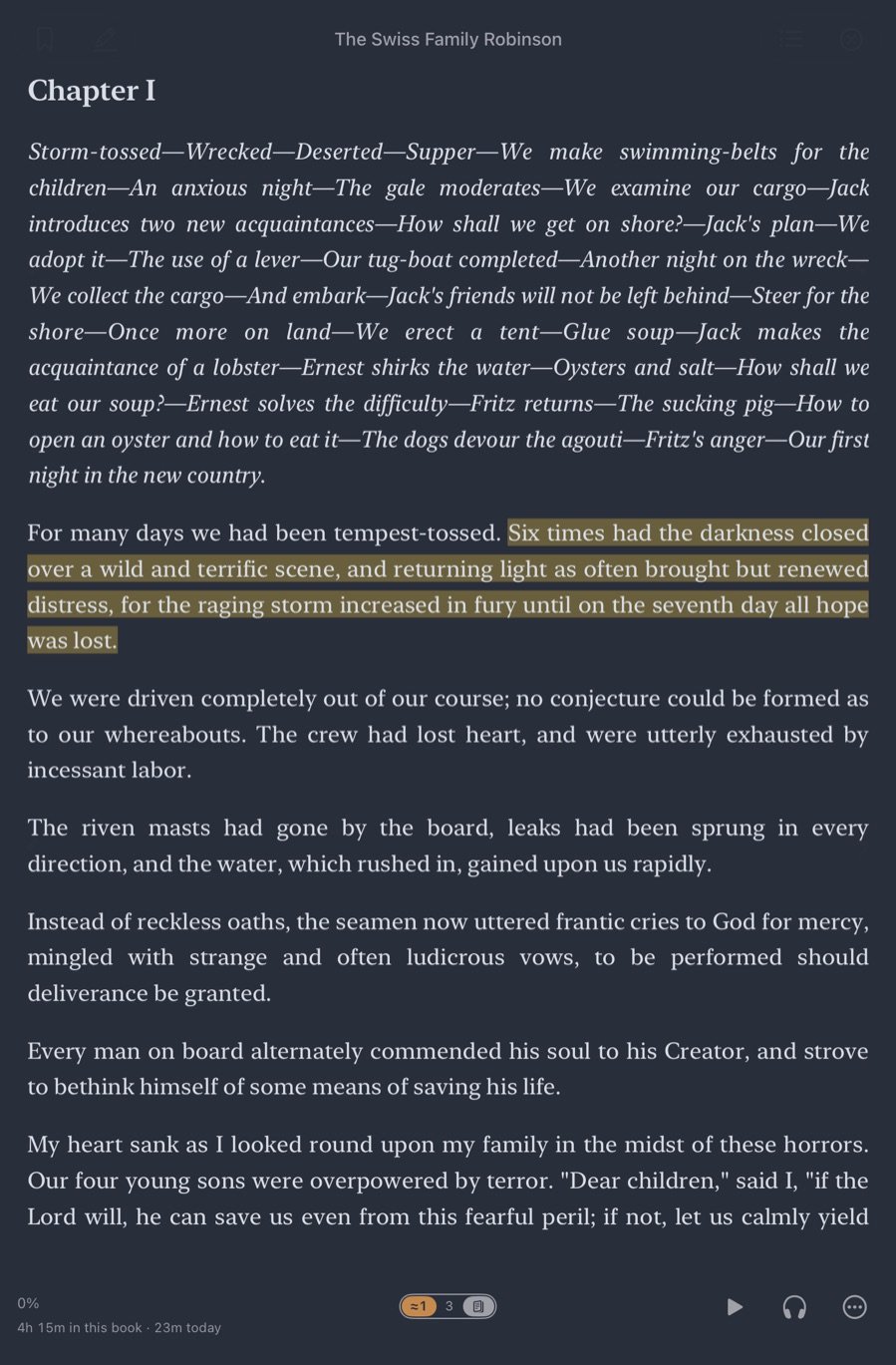
Everything follows you
Your place in every book, your notebook, your casts, your pronunciations, your reading list, and your journal all sync through iCloud to your other devices. There's nothing for you to set up.
Your place knows where it was made, like Chapter 12, iPad mini, 22 minutes ago. If another device is further along, opening the book takes you there and tells you so at the top. Back to mine takes you to this device's own spot.
Settings, Devices & Sharing names this device and lets you rename or remove old ones.
The bottom of the front page shows when everything last synced. Refresh pulls it all now.
Reading on an e-ink reader with KOReader? Settings, Devices & Sharing, KOReader sync shares one reading position with it. Their place shows under Where You Left Off, and choosing it takes you to the nearest sentence.
Make audio
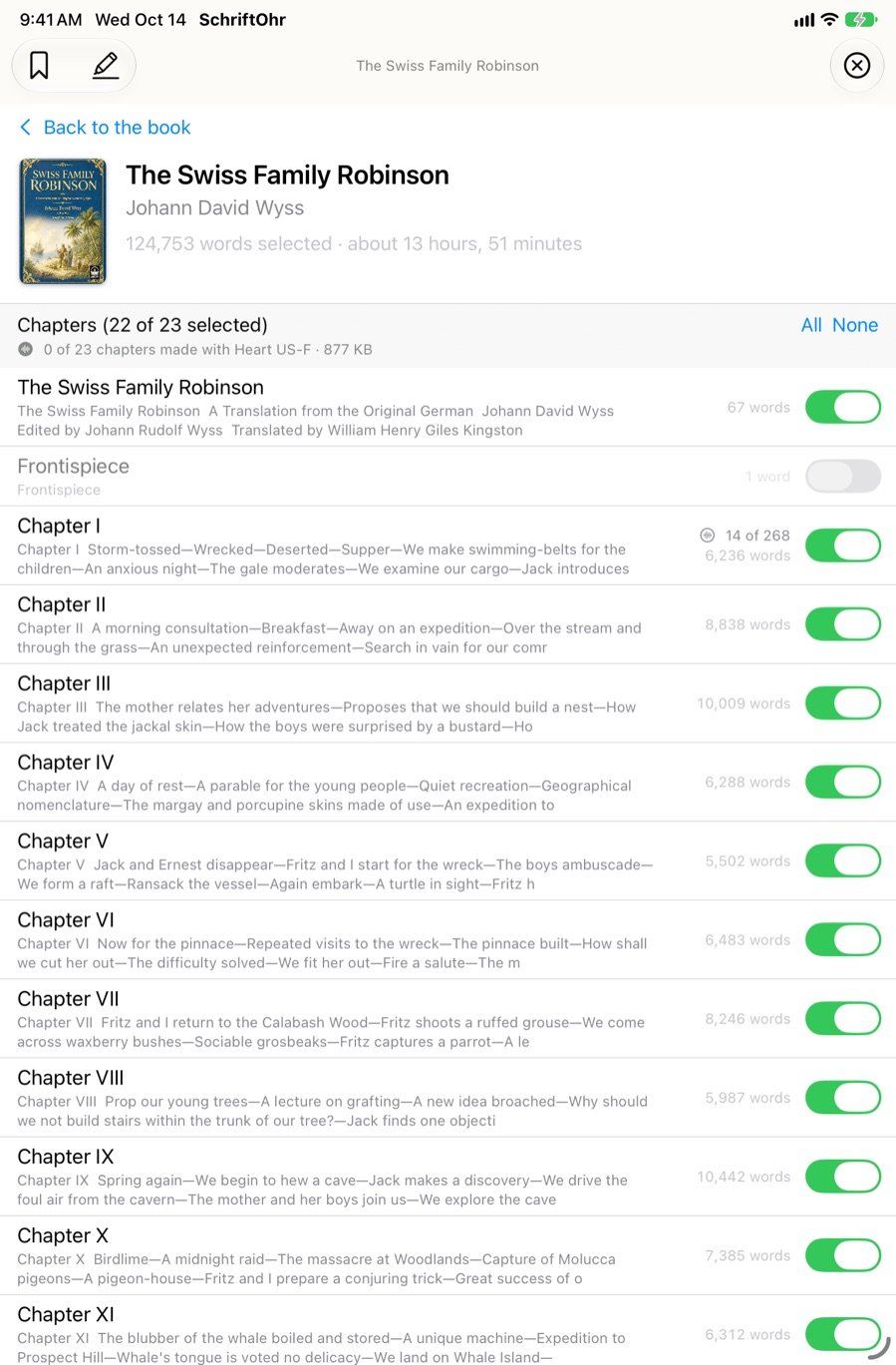
Make Audio, in the ⋯ menu, makes a book's audio ahead of time, three ways. For listening in the app, each chapter you pick is made with your voice, cast, and pronunciations and kept on this device. Playing kept audio saves battery, and it reaches your other devices through iCloud. Or make an audiobook file, an m4b with chapters and cover art, for the car or another app. Or both.
What's already made shows as a little waveform on each chapter, in Make Audio and in Contents, with a line like 12 of 68 chapters made with Heart, 96 MB. If you stop partway, it keeps what it made and picks up where it left off.
Audio is kept for the voice it was made with. Change voices and the book gets made again in the new one. The old voice's audio stays until you remove it in Settings.
On iOS 26 and later it keeps going when you leave the app, with its progress on the Lock Screen. Otherwise keep the app open; the screen will stay awake for you. If it stops, Make Audio picks up where it stopped. On a long book, it helps to plug in.
When something's off
If the voice has gone quiet, look in Settings, Diagnostics, Voice status. It shows what this device's voices can do, and Something wrong? sends us a report with the details we need.
A book on Continue Reading that isn't on this device shows dimmed. Tap it to find it here, attach the folder it came from, or remove it here or everywhere.
If the app can't find a book and it's anywhere the app can see, it opens from there on its own. If not, Find It lets you point to the file, and this device remembers.
Send a Report, from an error, About, Report a Bug, or Settings, Diagnostics, opens an email to us with the app's recent log attached. Nothing goes out until you press Send. Copy Report, beside it, puts the same report on the clipboard to paste wherever you like. Ideas are welcome too. That's the lightbulb at the top of the ⋯ menu.
© 2026 RFRMD Word Labs LLC · Home · Where to find books · Privacy · Age suitability
The name is German for writing-ear: Schrift, writing, and Ohr, ear.